OpenClaw is an open-source AI agent framework that can connect to channels like WhatsApp. This article shows how to run it on Saturn Cloud.
You will create one Saturn Cloud Deployment, configure OpenClaw in terminal, connect WhatsApp, then keep the gateway running from an active terminal session.
This guide uses a setup-first workflow. The deployment starts with sleep infinity so you can configure OpenClaw over terminal access and run OpenClaw manually in your terminal session.
Prerequisites
- A Saturn Cloud account
- An OpenAI-compatible key in Saturn environment variables (for example
OPENAI_API_KEY) - A WhatsApp account you control
- SSH or terminal access to the deployment
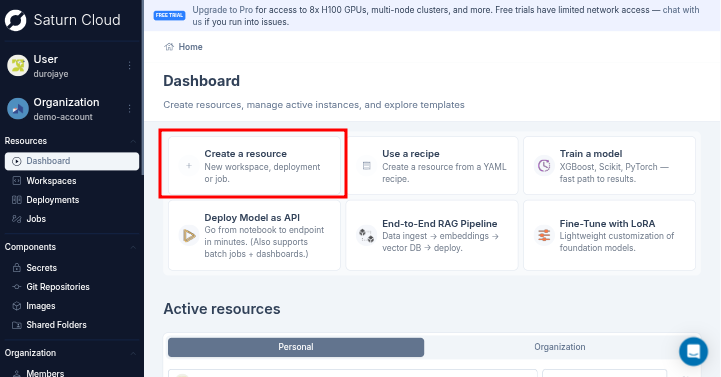
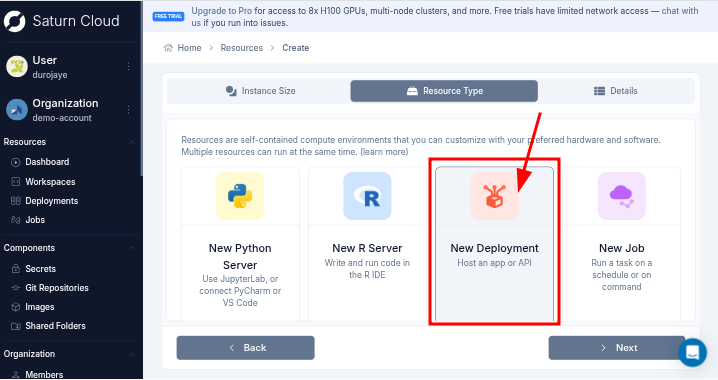
Step 1: Create a Saturn Cloud Resource
Create a Deployment resource in Saturn Cloud with:
- Name:
openclaw - Image:
saturncloud/saturn-python - Size: start with Medium (2 vCPU, 4 GB RAM)
- External URL: enabled, routed to container port
8000 - Allow SSH Connections: enabled
- Custom Subdomain: set a unique value (for example
openclaw-yourname)
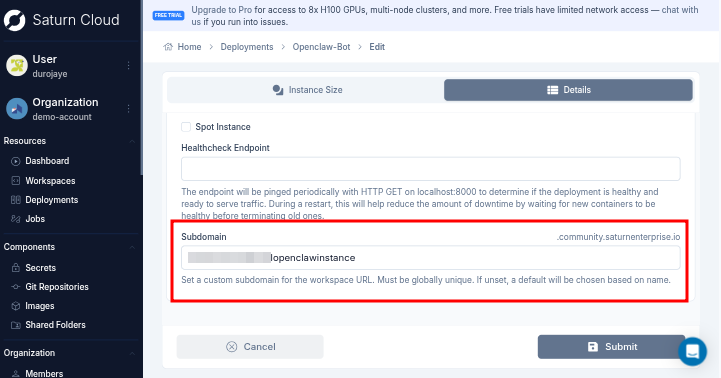
For setup, use a command that keeps the deployment running while you configure OpenClaw from the terminal:
sleep infinity
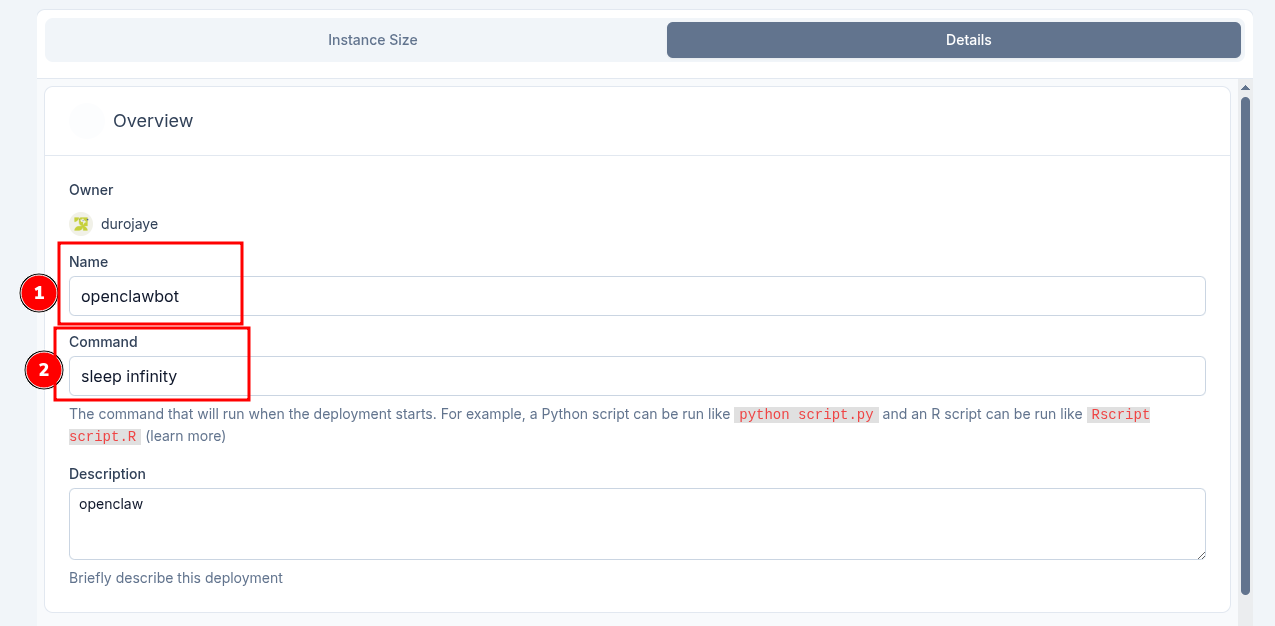
Before you click Create, confirm:
- Name is set
- Command is
sleep infinity - Instance Count is
1 - Image is
saturncloud/saturn-python - External URL is enabled and points to port
8000 - Allow SSH Connections is enabled
- Custom subdomain is set and unique
Save and start the deployment.
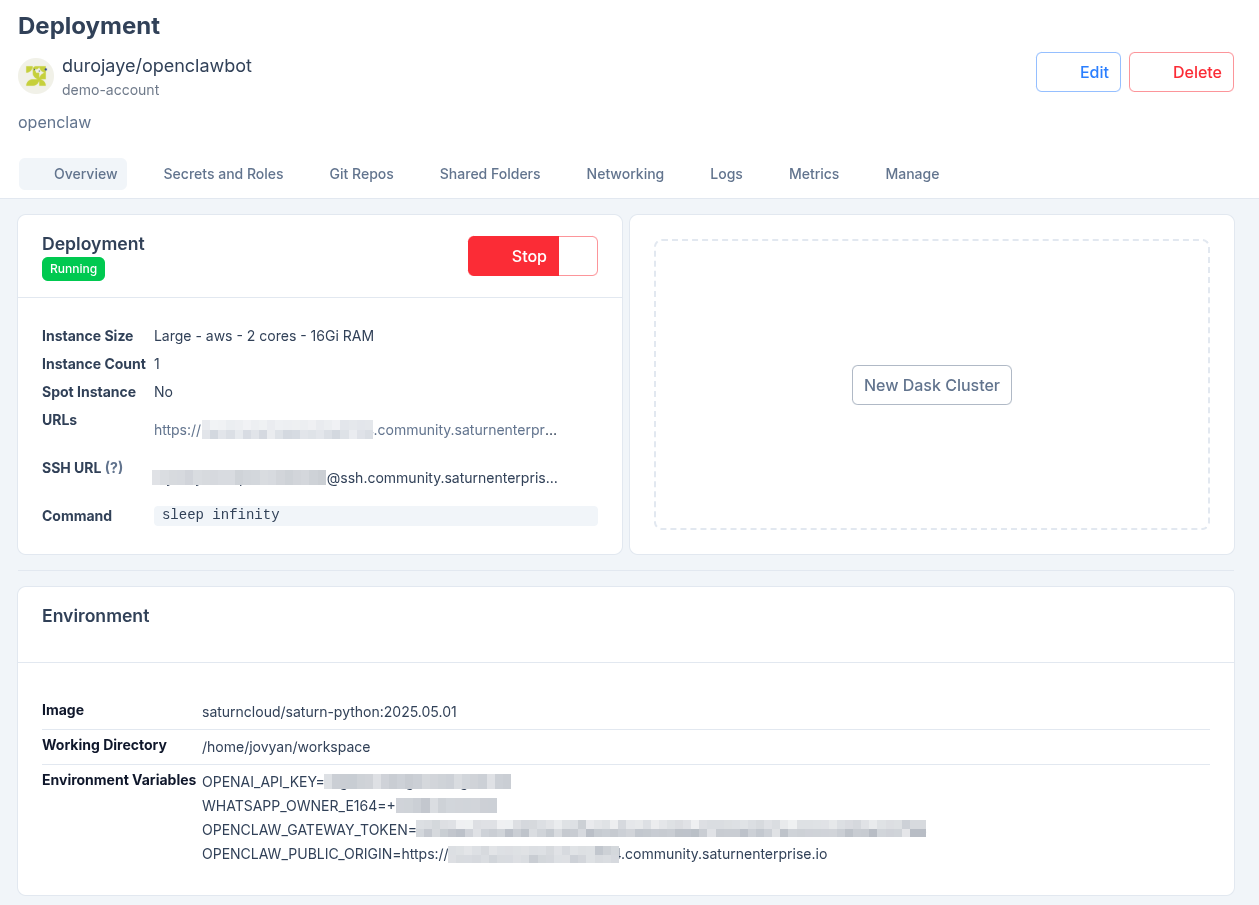
Step 2: Set Environment Variables
In the deployment Details tab, add these environment variables:
Before filling the environment variables, generate a gateway token locally:
openssl rand -hex 32
Use the generated value as OPENCLAW_GATEWAY_TOKEN.
OPENAI_API_KEY=YOUR_OPENAI_API_KEY
OPENCLAW_GATEWAY_TOKEN=YOUR_GATEWAY_TOKEN
OPENCLAW_PUBLIC_ORIGIN=https://your-subdomain.community.saturnenterprise.io
WHATSAPP_OWNER_E164=+1234567890
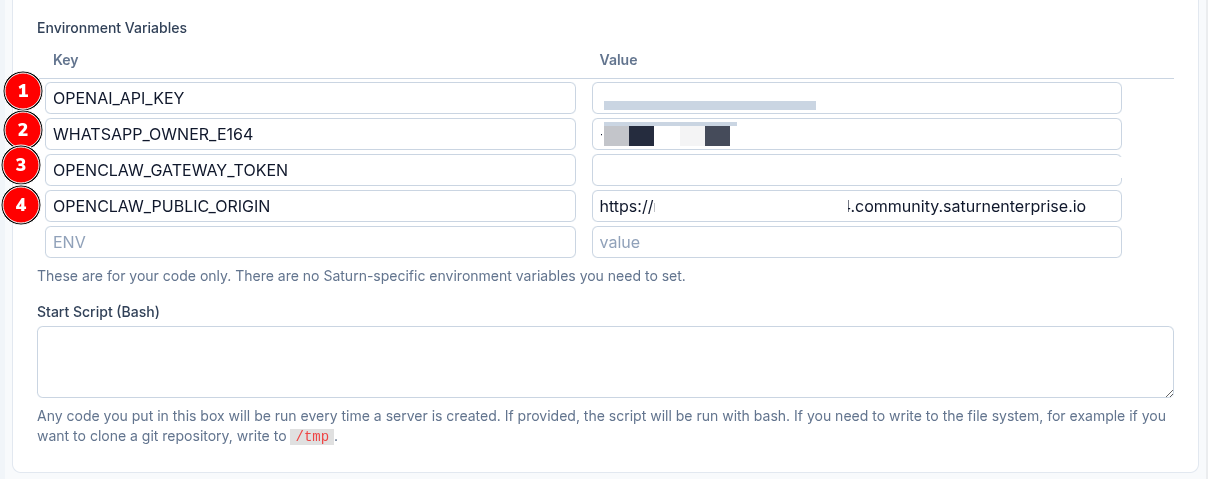
Keep these values in Saturn env vars, not in scripts.
WHATSAPP_OWNER_E164 is the WhatsApp number allowed to message OpenClaw, not necessarily the number linked as the OpenClaw WhatsApp account.
Set OPENCLAW_PUBLIC_ORIGIN to the browser URL for your deployment, not the SSH hostname. Use the same custom subdomain you created in Step 1. It should look like https://your-subdomain.community.saturnenterprise.io and should not include a trailing slash.
Step 3: SSH Into the Deployment
After the deployment is running:
- Open the deployment Overview page.
- Copy the SSH connection command.
- Run it in your local terminal to open Terminal 1.
Later, open Terminal 2 by running the same SSH command in a second local terminal window.
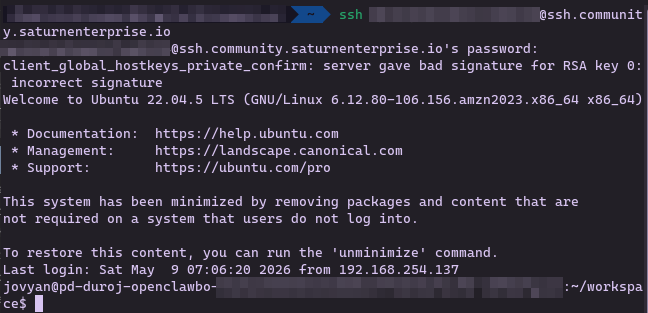
Verify runtime tools:
node -v
npm -v

The saturncloud/saturn-python image usually includes Node and npm. If either command is missing, install Node.js before continuing.
Step 4: Install OpenClaw
Install using the official installer:
curl -fsSL --proto '=https' --tlsv1.2 https://openclaw.ai/install.sh | bash -s -- --no-onboard
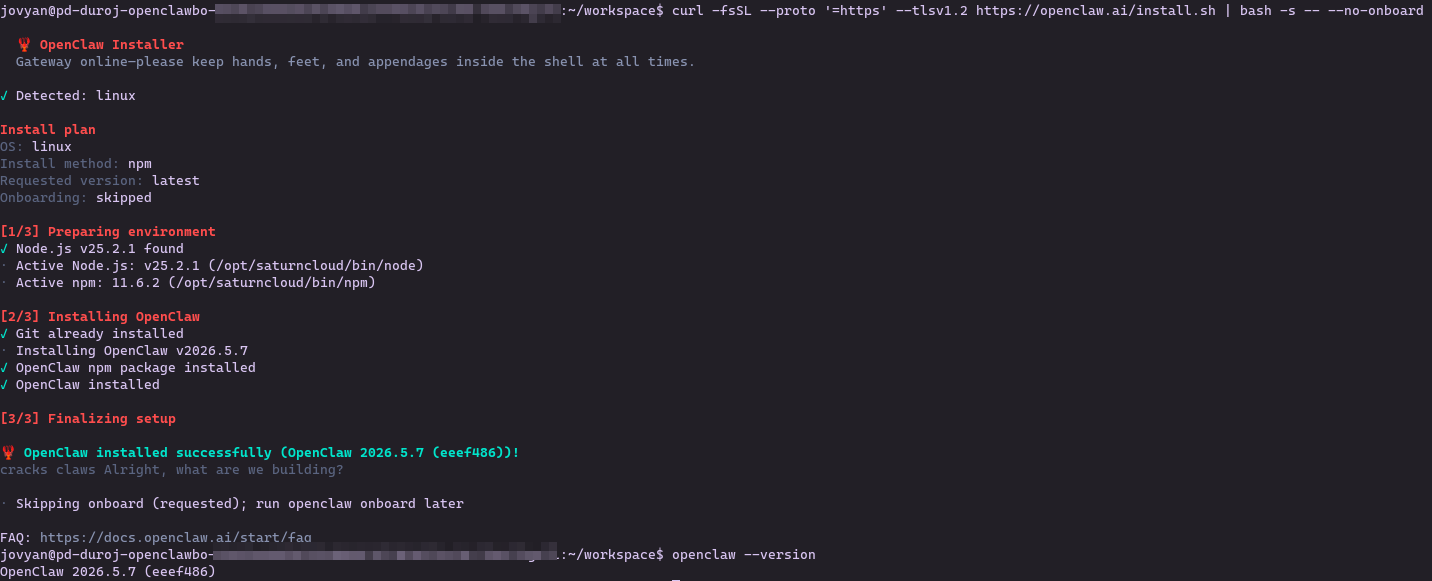
Verify:
openclaw --version
Step 5: Run OpenClaw Onboarding (Port 8000)
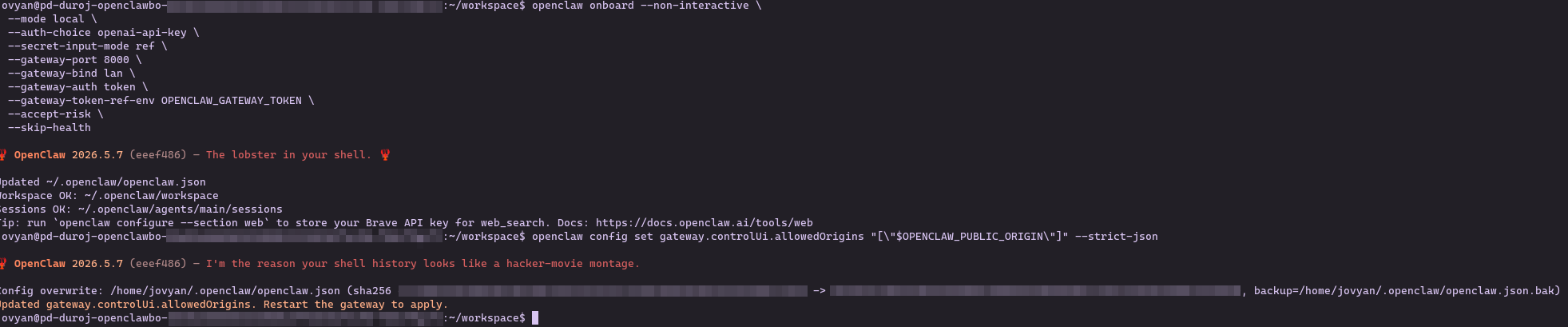
Run onboarding:
openclaw onboard --non-interactive \
  --mode local \
  --auth-choice openai-api-key \
  --secret-input-mode ref \
  --gateway-port 8000 \
  --gateway-bind lan \
  --gateway-auth token \
  --gateway-token-ref-env OPENCLAW_GATEWAY_TOKEN \
  --accept-risk \
  --skip-health
Then allow your Saturn deployment URL in the control UI config:
openclaw config set gateway.controlUi.allowedOrigins "[\"$OPENCLAW_PUBLIC_ORIGIN\"]" --strict-json
Step 6: Connect WhatsApp
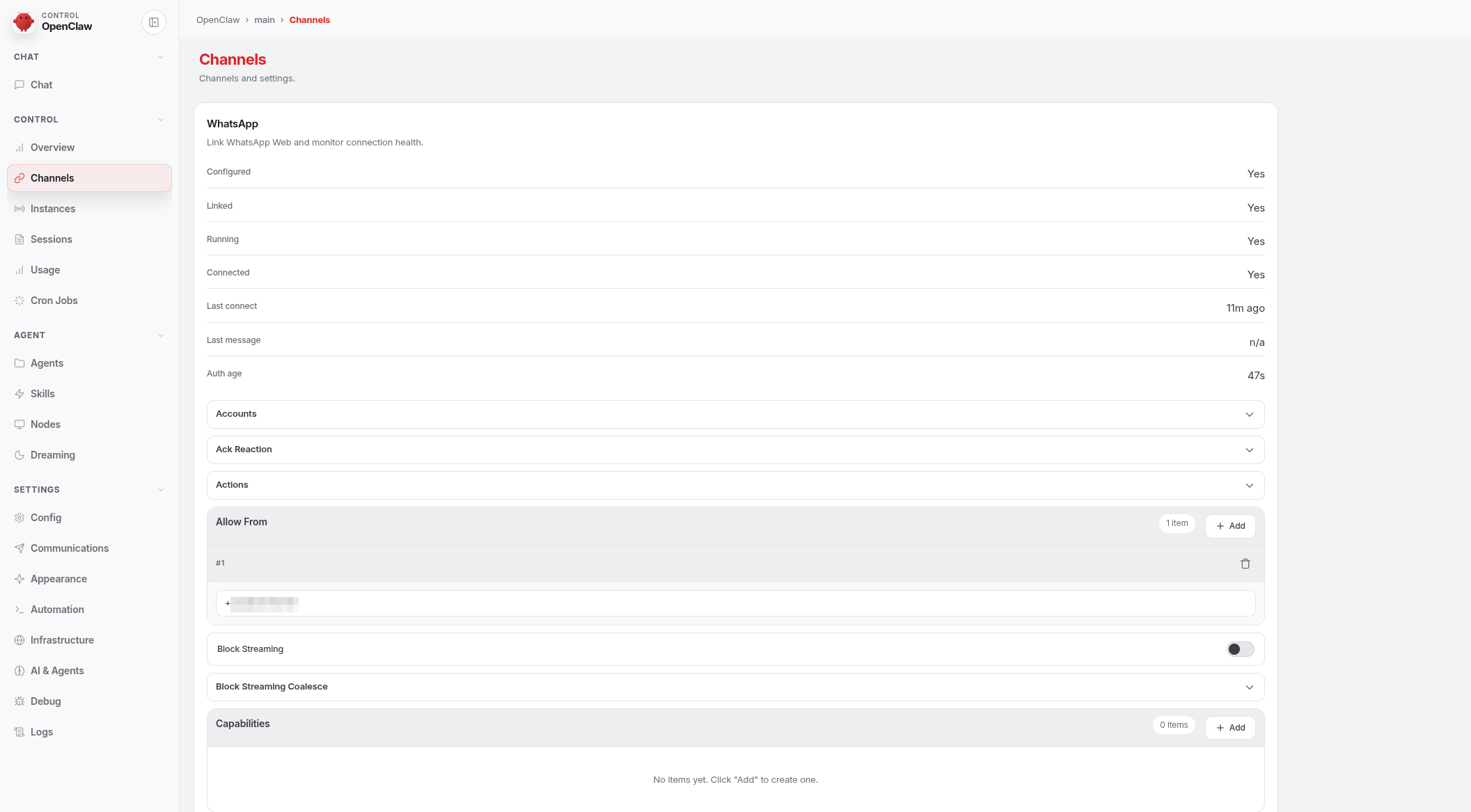
In Terminal 1, install and configure WhatsApp:
openclaw plugins install @openclaw/whatsapp
openclaw config set channels.whatsapp.dmPolicy pairing
openclaw config set channels.whatsapp.allowFrom "[\"$WHATSAPP_OWNER_E164\"]" --strict-json
openclaw config set channels.whatsapp.groupPolicy disabled
openclaw channels login --channel whatsapp
Scan the QR code when prompted.
When the login succeeds, OpenClaw should report that the WhatsApp web session is ready. If it asks for a gateway restart, continue to the next step and start the gateway manually.
Step 7: Start the Gateway in Foreground (Terminal 1)
In this container-based setup, run the gateway in the foreground instead of using openclaw gateway restart.
In Terminal 1, start the gateway:
openclaw gateway
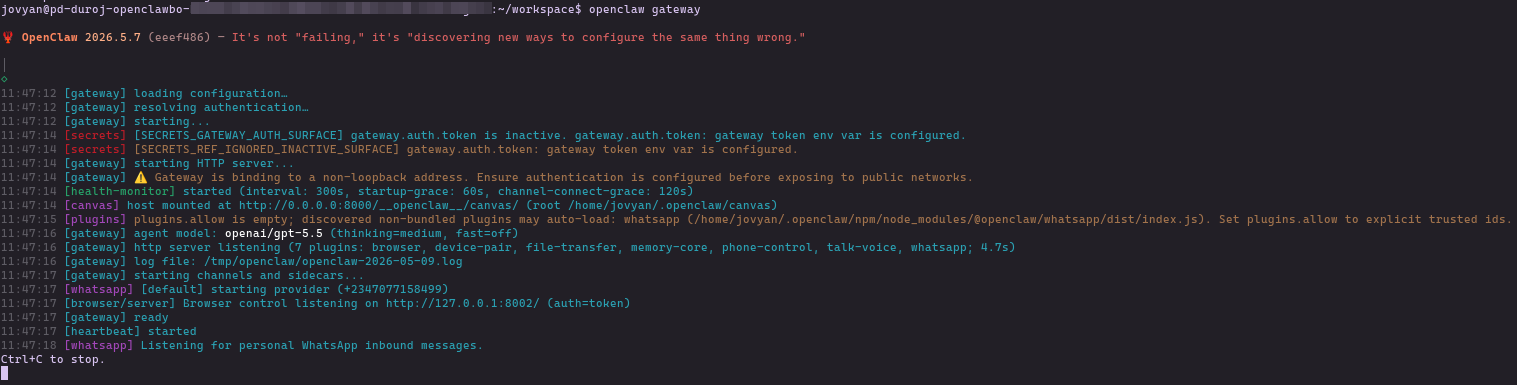
Checkpoint: Terminal 1 should show gateway ready and Listening for personal WhatsApp inbound messages.
Keep this terminal open.
If your SSH session disconnects, reconnect and rerun:
openclaw gateway
Do not use:
openclaw gateway restart
That command expects OpenClaw to be installed as a system service, which is not how this deployment is configured.
Plugin and channel changes are loaded when the gateway starts. If you make those changes after starting the gateway, stop it with Ctrl+C, then run openclaw gateway again.
Step 8: Open the UI and Approve Browser Device
- Open the Saturn deployment URL in your browser.
- Paste your gateway token if prompted, then copy the device approval request ID.
- Keep Terminal 1 running
openclaw gateway. - Open Terminal 2 in the same deployment.
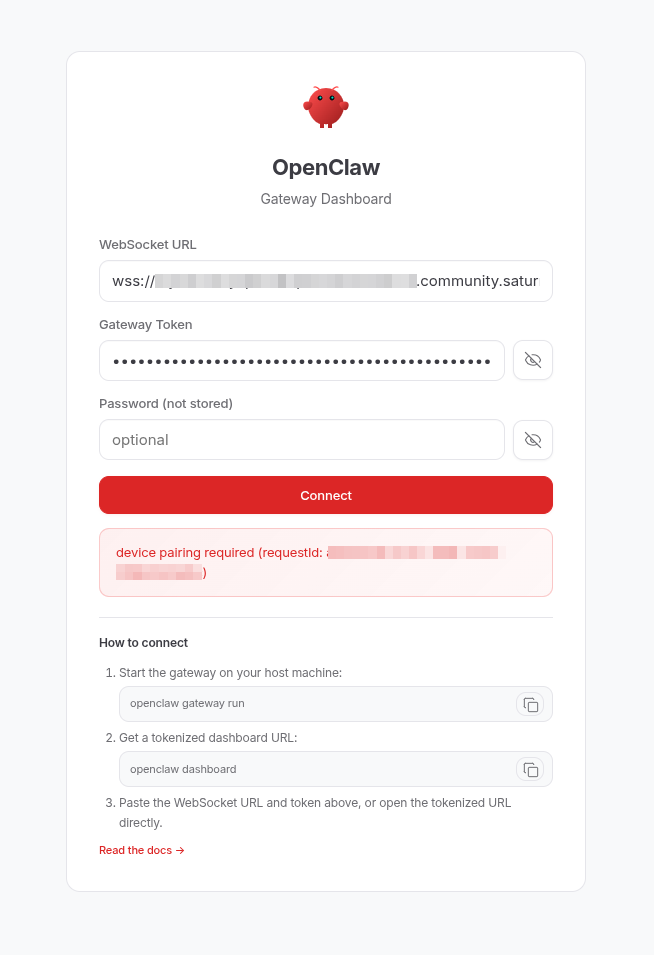
- In Terminal 2, run:
openclaw devices list
openclaw devices approve <request-id>
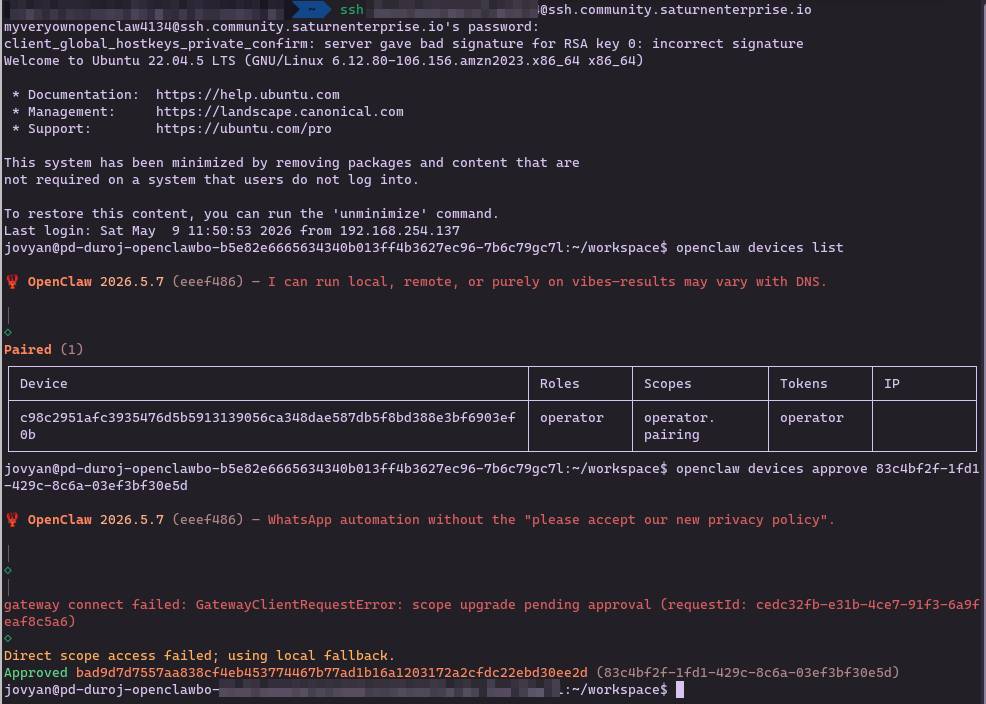
Do not press Ctrl+C in Terminal 1 before approvals finish.
Step 9: Test WhatsApp
Send a WhatsApp message from the number set in WHATSAPP_OWNER_E164 to the WhatsApp account linked to OpenClaw.
In Terminal 1, watch the gateway logs. If you see an inbound WhatsApp message, the channel is connected.
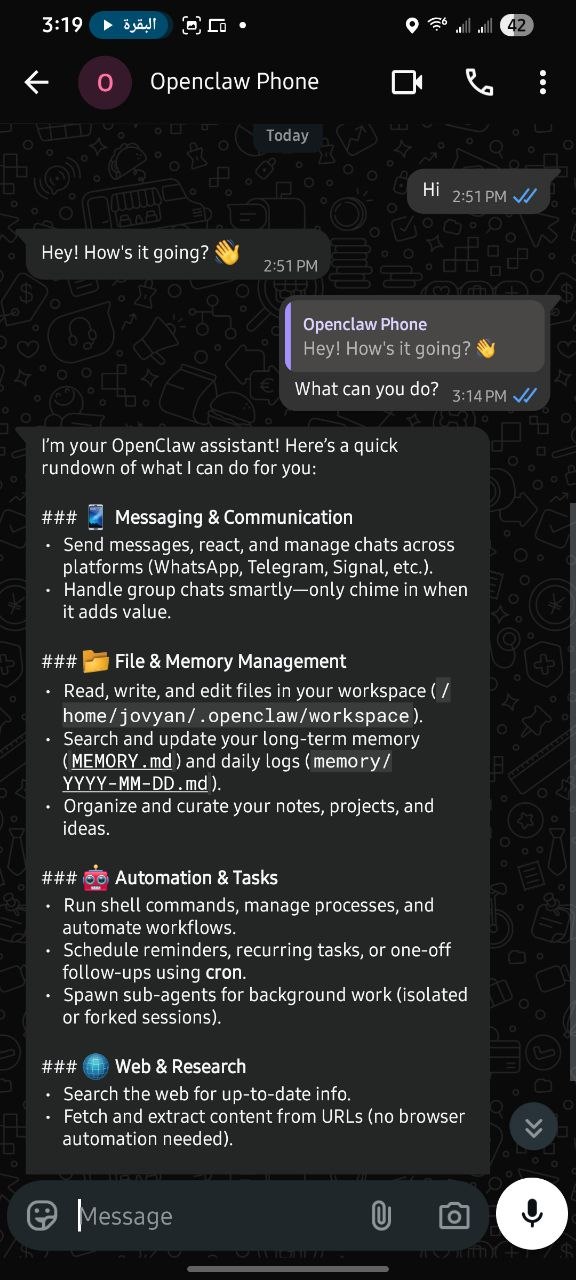
If the inbound message appears but the assistant does not reply, check the troubleshooting section for API key or provider errors.
Step 10: Keep the Gateway Running
For this setup, keep openclaw gateway running in Terminal 1.
The deployment command remains:
sleep infinity
This keeps the Saturn deployment alive while OpenClaw runs inside your SSH session.
sleep infinity only keeps the deployment alive. It does not start OpenClaw by itself.
If your terminal session closes, start openclaw gateway again when you reconnect.
Do not change the deployment command after setup unless you have configured persistent storage for ~/.openclaw. Restarting or recreating the deployment without persistent storage can remove WhatsApp login state, browser approvals, and OpenClaw configuration.
Step 11: Troubleshooting
Check gateway logs
In the terminal running the gateway, watch the live logs. If you need the saved log file, run:
ls -la /tmp/openclaw
tail -100 /tmp/openclaw/openclaw-*.log
Gateway does not start
- Re-run
openclaw onboardwith the exact command above. - Make sure the deployment URL routes to port
8000.
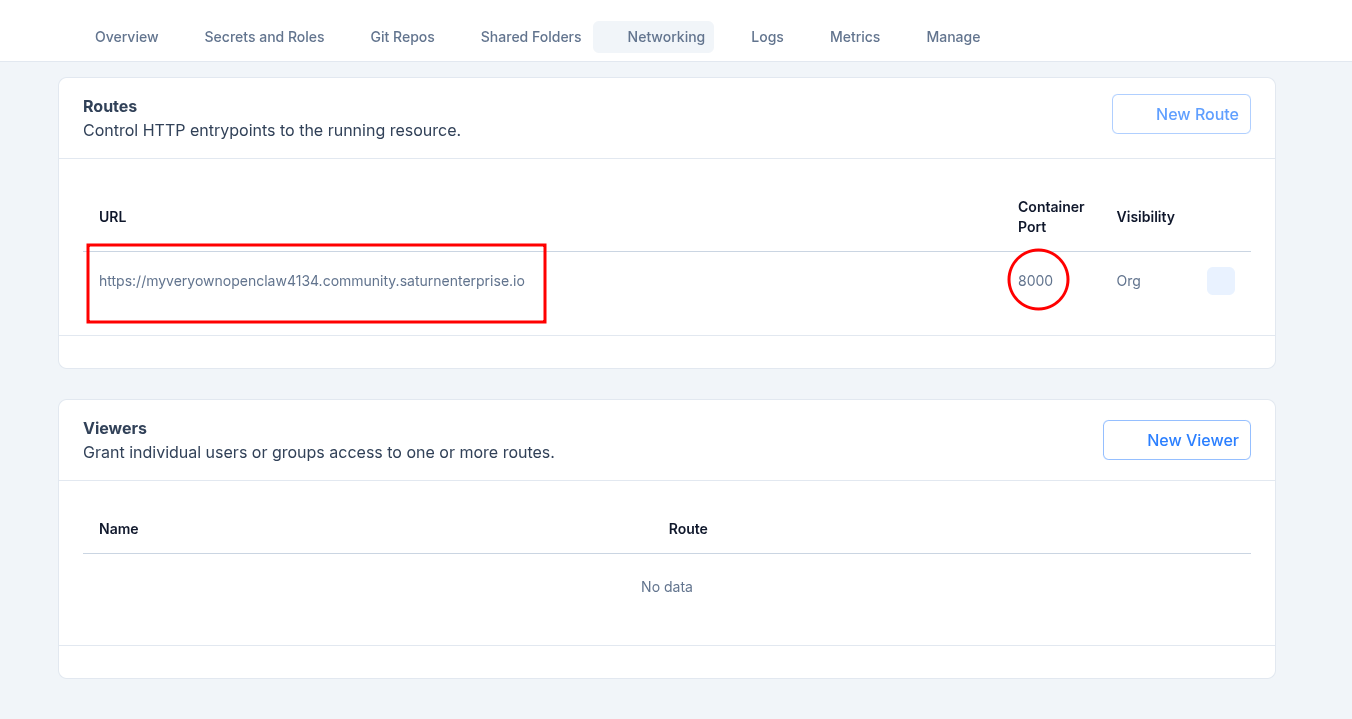
Deployment URL is missing
If Saturn does not show a deployment URL, create a route in Networking:
- Container Port:
8000 - Visibility:
Org
Device approval fails
- Keep Terminal 1 running
openclaw gateway. - Run approval commands from Terminal 2 only.
- Do not stop the gateway before
openclaw devices approve.
WhatsApp inbound arrives, but no assistant reply
If logs show inbound WhatsApp messages and then a provider 401 error, your channel is connected but your AI API key is invalid.
Check OPENAI_API_KEY and any custom provider URL settings.
openclaw gateway restart fails
Run openclaw gateway in Terminal 1 during setup.
WhatsApp asks for QR login again
This guide does not configure persistent storage.
If the deployment filesystem is reset, WhatsApp login state and browser device approvals may need to be repeated:
- WhatsApp QR login
- Browser device approval
Step 12: Security Notes
- Keep all secrets in Saturn environment variables.
- Restrict
channels.whatsapp.allowFromto your number. - Use token auth for gateway access.
- Review plugins before installation and keep only required channels enabled.
- This guide does not configure persistent storage. Treat the deployment filesystem as temporary unless you add persistent storage.
- Do not share screenshots of the WhatsApp QR code while it is active.
Why Saturn Cloud Over a Raw VPS
Most OpenClaw VPS guides require extra infrastructure work: server hardening, firewall rules, service management, and SSL setup. Saturn Cloud reduces that setup overhead.
You get:
- Managed container environment
- Isolated container runtime
- Built-in environment variable management
- SSH access and routing controls from one dashboard
Support Resources
- OpenClaw Docs: https://openclaw.ai/docs
- Saturn Cloud Docs: https://saturncloud.io/docs/
- Saturn Cloud SSH Guide: https://saturncloud.io/docs/user-guide/how-to/access/ide_ssh/
Summary
To deploy OpenClaw on Saturn Cloud:
- Create a Deployment with
saturncloud/saturn-pythonandsleep infinity - Add env vars for OpenAI, gateway token, public origin, and WhatsApp sender allowlist number
- Install OpenClaw in terminal
- Run onboarding on port
8000and setallowedOrigins - Configure WhatsApp and complete QR login
- Start gateway in Terminal 1
- Approve browser device from Terminal 2
- Test WhatsApp from the allowed sender number
- Keep
openclaw gatewayrunning in Terminal 1 while using OpenClaw